CLS, or cumulative layout shift, can be a real problem for WooCommerce stores, but thankfully, it’s something you can fix.
CLS is a measurement of how much of a page’s layout and content shifts or moves unexpectedly when it’s loading.
This sort of shifting isn’t ideal for any website, but it’s particularly serious for WooCommerce stores. A high CLS score makes stores difficult to use and feel broken or unprofessional, two factors that can significantly reduce conversion rates.
In this guide, we cover how to measure CLS, the common causes of layout shifts in WooCommerce stores, and how to fix them.
What is CLS?
If you’ve ever visited a website and noticed its layout shifting or moving around while it loads, it probably has a high CLS score. Pages with lower CLS scores are more stable and shift less, making them easier for visitors to use.
For eCommerce stores, having a low CLS score is especially important as layout shifts can affect them in a number of important ways, including:
- User experience: Shifting buttons or images frustrates shoppers.
- Trustworthiness: A page that jumps around feels unprofessional.
- Conversions: Frustrated users are less likely to complete purchases.
- SEO: Google prefers pages with stable layouts, especially on mobile.
As CLS can affect how people find your store and what they do when they arrive, it’s something you should actively work to improve.
How to Measure CLS
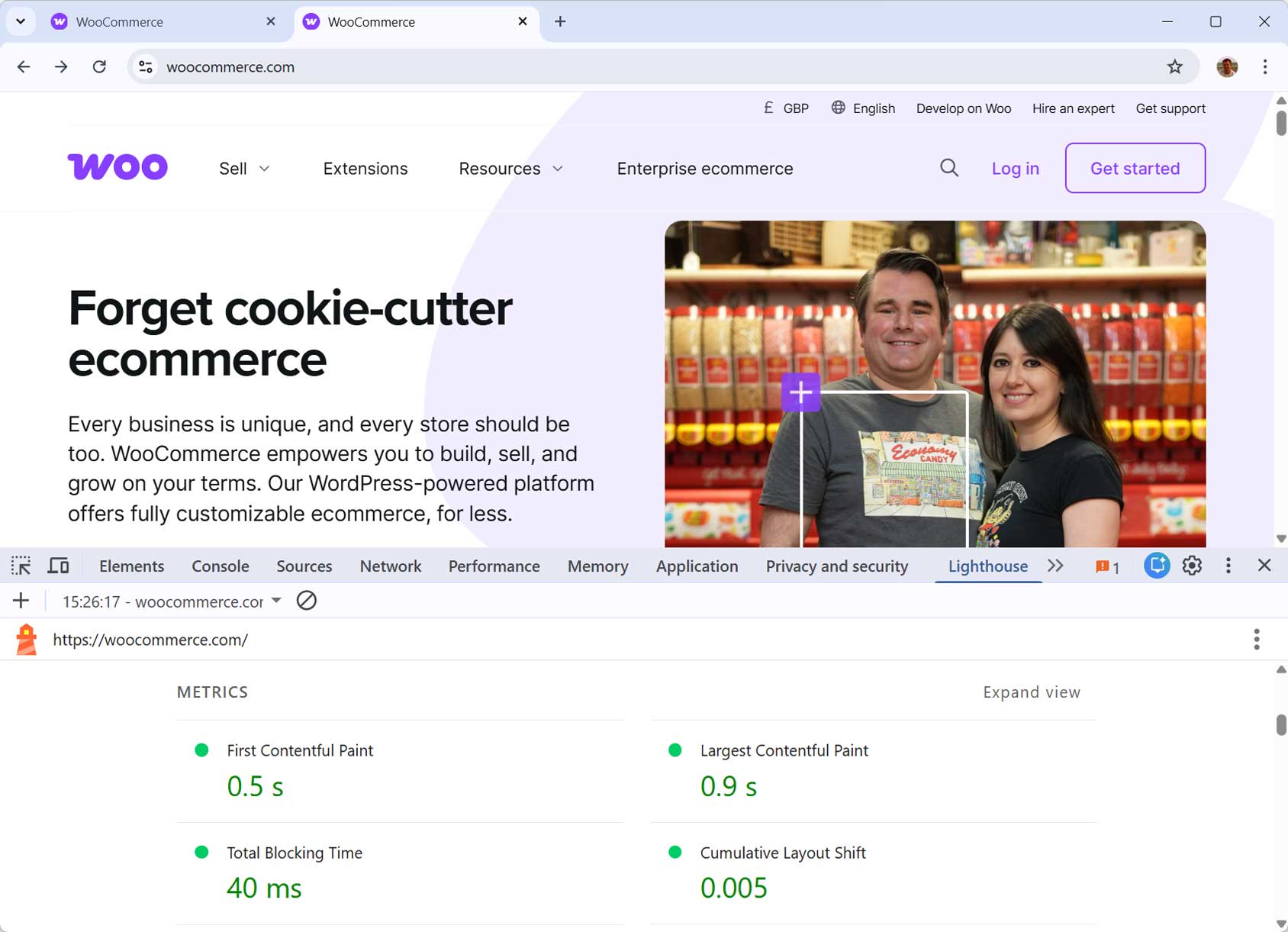
Before you can improve your WooCommerce store’s CLS score, you need to measure it. You should also take a new measurement each time you make any changes to your store.
Google recommends a CLS score of 0.1 or less, but because layout shifts have a bigger impact on eCommerce stores, it’s worth aiming for as close to 0 as possible.
While all pages of your store should have low CLS scores, it’s especially important that the key eCommerce pages, such as single product, category, cart, and checkout pages, have low scores. If these parts of your store aren’t functioning as expected, it will have the most significant impact on your business.
You can measure CLS using the following tools:
- CLS Debugger
- Chrome Browser DevTools
- Chrome User Experience Report (CrUX)
- PageSpeed Insights
- Search Console (Core Web Vitals report)
The CLS Debugger is particularly useful as it creates a GIF that shows all the mobile and desktop layout shifts on a page. It also highlights the elements that are affecting the CLS score, making it easy to see what needs attention.
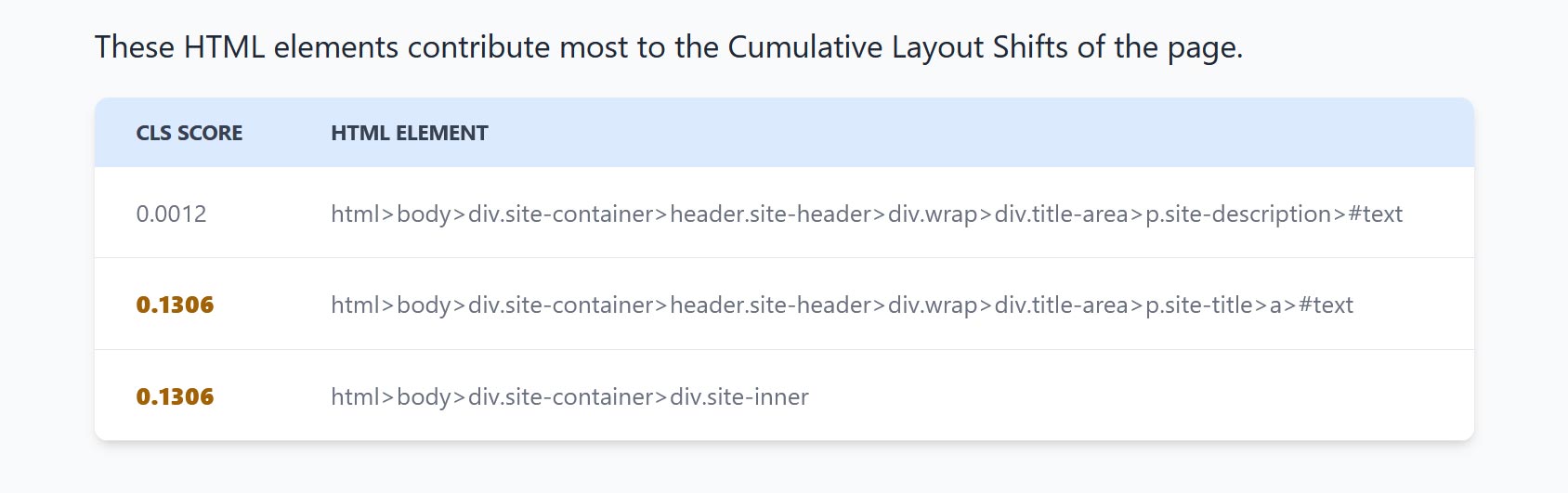
Testing CLS using a mix of methods, including both lab data (such as PageSpeed Insights) and field data (such as CrUX), gives you a clearer picture of how your site performs and how real visitors experience layout shifts.
Common WooCommerce CLS Problems and Solutions
Now that we’ve covered what CLS is, why it’s important, and how to measure it, let’s look at the common CLS problems that can affect WooCommerce stores and how to fix them.
1. Images and Media Without Dimensions
 Images and other media without dimensions are one of the biggest causes of layout shifts.
If a browser doesn’t know the size of an image, it can’t reserve space for it. Without space reserved for the image, everything gets pushed around when it loads, causing page elements to suddenly jump into new positions.
To fix this, make sure all images, especially product images, have width and height attributes. WordPress now adds these attributes by default, but they can sometimes be removed.
To find images without dimensions, analyze the site in GTmetrix, then open the Structure tab. Any issues will be highlighted under the “Use explicit width and height on image elements” section.
To quickly set the attributes, a plugin like WP Rocket can add missing image dimensions in one click.
Videos, iframes, and ads can cause the same type of problems. For the latter, try reserving space for the ads, using the largest size configured to serve or the size most likely to serve.
2. Disable Lazy Loading Above the Fold
Lazy loading prevents content, such as images, from loading until they’re needed. However, applying lazy loading to elements that appear above the fold can cause layout shifts.
To fix this, disable lazy loading for images and other content that’s displayed above the fold. Using placeholders for any other content reserves their space until they’re loaded, ensuring the page layout remains intact, even if the image isn’t displayed right away.
Most plugins that handle lazy loading automatically exclude above-the-fold content or give you the option to do it manually.
3. Dynamically Injected Content (Popups, Notices, Bars)
Banners, popups, notifications, and other content that appear after a page loads can cause layout shifts.
For eCommerce stores, this could include “Item added to cart” messages or promotional banners that some stores display at the top of a page, which push content down.
To fix this, reserve space for notices on your site using fixed-height containers, and avoid triggering popups during initial page load.
4. Slow or Flashing Web Fonts (FOUT / FOIT)
Another common cause of layout shifts is when a store uses a custom font, but the fallback font loads first.
If switching from the fallback font to the custom font changes the height or width of text, the page content can jump. This is known as FOUT (Flash of Unstyled Text).
Another font-related issue is FOIT (Flash of Invisible Text). This happens when the browser hides text until the custom font loads. Once the text is displayed, the content shifts down.
5. Third-party Scripts and Widgets
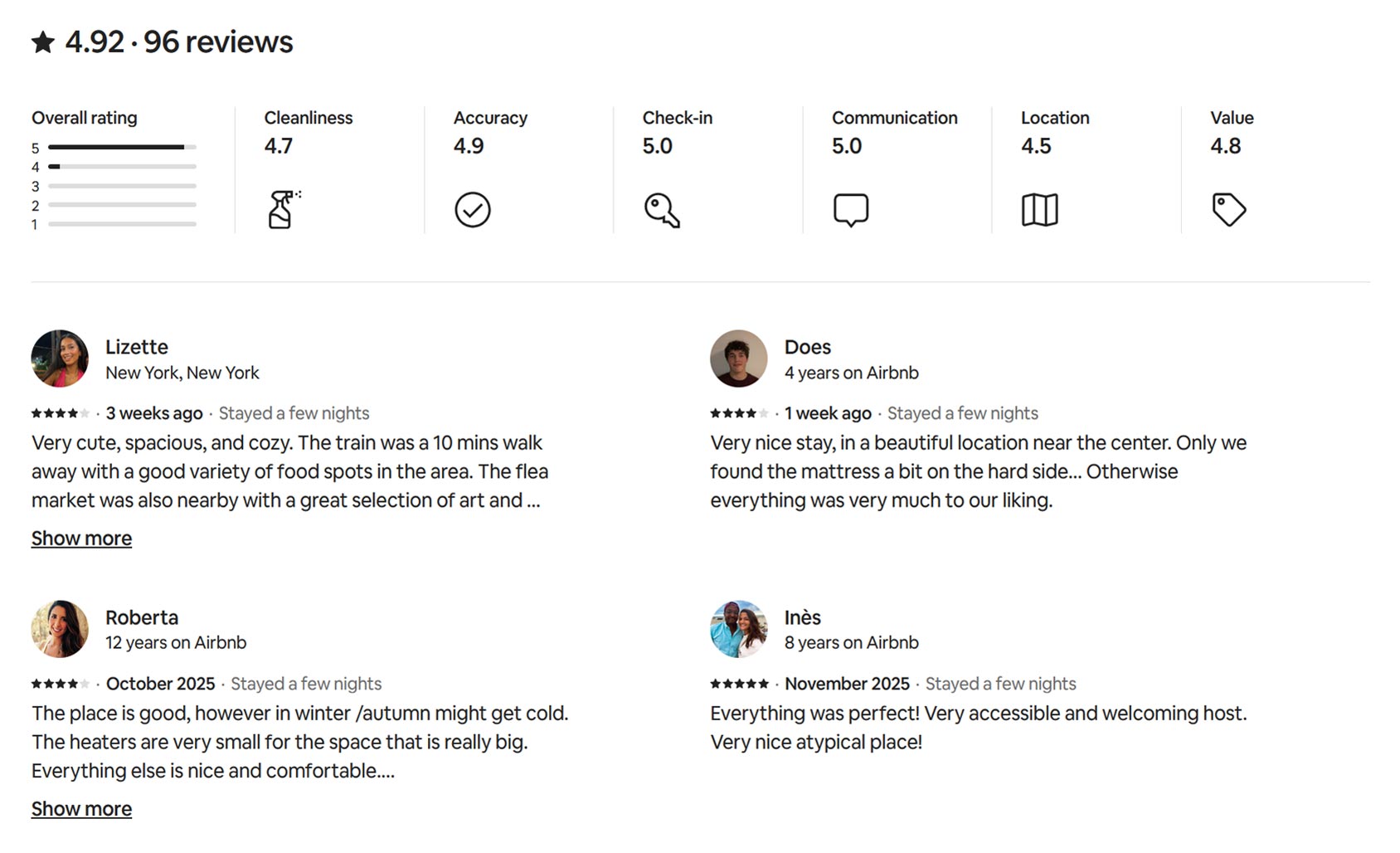
Store features, such as product carousels, review widgets, live chat windows, and social media embeds, often rely on third-party JavaScript. These scripts inject content into the page after it has started to load, which can cause the layout to shift.
To fix this, delay loading these scripts until after a user interaction, such as moving the cursor or scrolling a page. This delay can allow the layout to settle before the features are added.
If it’s not possible to delay the scripts, then reserving space for widget content, as you would for images and other dynamic content, can prevent layout shifts when they load.
It’s also a good idea to review any of the problematic features to ensure they’re still necessary. If the features are essential and you’re using plugins to add them, consider switching to better-optimized alternatives.
6. Cookie Notices and Consent Banners
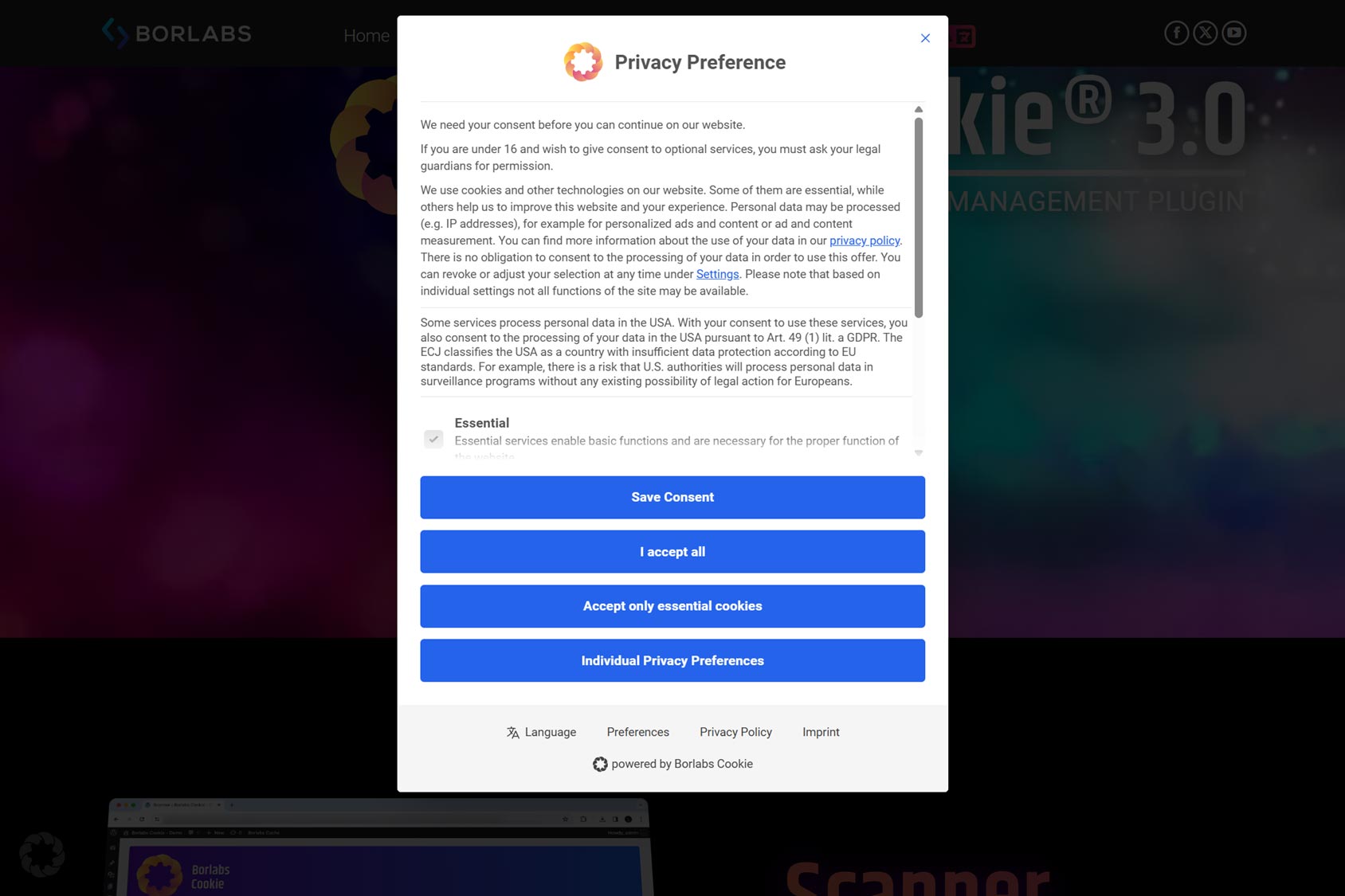
Cookie notices and consent banners are another common cause of layout shifts on WooCommerce stores. Typically, these essential notices and banners are injected into pages by a plugin. As this usually happens after the main content has loaded, they can shift the other content around.
Using a lightweight, CLS-friendly plugin to add this functionality is the best fix for this issue. However, if you can’t, delaying loading the script and reserving space for the notice helps prevent layout shift.
WooCommerce CLS Improvement Checklist
Reducing layout shifts can improve your store’s user experience, increase conversions, and boost SEO. Here’s a checklist for improving CLS:
- Prioritize: Focus on improving key pages, such as product, category, and checkout pages for the biggest benefits.
- Test: Measure your current CLS scores using tools like PageSpeed Insights or Chrome DevTools.
- Check: Audit your pages for the common issues highlighted in this guide: images without dimensions, lazy loading above the fold, popups, fonts, and third-party widgets.
- Fix: Implement the solutions from this guide to resolve any issues.
- Re-Test: Measure again to see the impact of your changes.
Following this checklist to improve CLS will help your WooCommerce store feel more stable, professional, and easy to use, resulting in happier shoppers and higher conversions.
WooCommerce CLS Frequently Asked Questions
What is a Layout Shift and Why is It Important for My Website?
A layout shift occurs when elements on a webpage move unexpectedly while the page loads. This disrupts the user experience and can harm SEO. Layout shift is measured by Google’s Cumulative Layout Shift (CLS) metric, which is part of Core Web Vitals. Reducing layout shifts improves user satisfaction and engagement and can increase search engine visibility.
What Are the Benefits of Improving CLS?
Improving your store’s CLS can increase user satisfaction, conversions, and SEO.
What Are the Main Causes of Layout Shifts?
Layout shifts are often caused by:
- Images or videos without set dimensions.
- Lazy loading above-the-fold content.
- Ads and popups that load dynamically.
- FOUT (Flash of Unstyled Text) or FOIT (Flash of Invisible Text) caused by custom fonts.
- Third-party widgets, such as product carousels and social media embeds.
How Can I Test My WooCommerce Store for Layout Shifts?
You can measure and identify layout shifts using tools such as:
Remember to test the key pages of your store, including the product, cart, and checkout pages.
How Often Should I Test for Layout Shifts?
You should check your CLS score whenever you make changes to your store, such as installing a new plugin, switching themes, or altering the design.
What is a Good CLS Score for a WooCommerce Store?
Google recommends a CLS score of 0.1 or lower, but for eCommerce stores, it’s worth aiming for as close to 0 as possible, as shifts can harm customer perception and reduce conversions.
Can WordPress Plugins Cause Layout Shifts?
WordPress plugins that inject content after a page layout starts loading can cause shifts. Examples include plugins that display review and chat widgets, recommended or related products, and trust badges. Always test your store’s CLS after installing any new plugins.
The Complete Guide to eCommerce Popups: From Basic to Advanced Strategies
The Art of Popup Copywriting: Engaging Your Audience
How to add Google Analytics to your WordPress and WooCommerce website
How do I setup Email marketing for WooCommerce?
Best Order Confirmation eCommerce Examples